
A Multi-Pass lets a patron use the same ticket to attend multiple dates of one event. It is useful for festivals, multi-day activities, and events where patrons can choose which dates to attend.
How Multi-Passes work
- The pass belongs to the overall event, rather than one specific event date.
- The patron appears on the guest list for each eligible date, whether or not they attend.
- Each pass has one barcode. The patron keeps that ticket and uses the same barcode on later visits.
- You can allow access to all eligible dates or limit how many different dates the pass can be used.
- A Multi-Pass does not assign or reserve a seat.
Plan your inventory first
Multi-Pass inventory is separate from the regular ticket inventory for each event date. Selling a Multi-Pass does not automatically reduce the number of regular tickets available for those dates. Account for pass holders when setting your daily ticket quantities.
Example only: If your venue holds 100 people, you might offer 20 Multi-Passes and 80 regular tickets for each date. This leaves room for all 20 pass holders if they choose to attend the same date.
Choose the quantities that suit your event and capacity, including smaller events.
Create a Multi-Pass
- Open your event and go to Tickets.
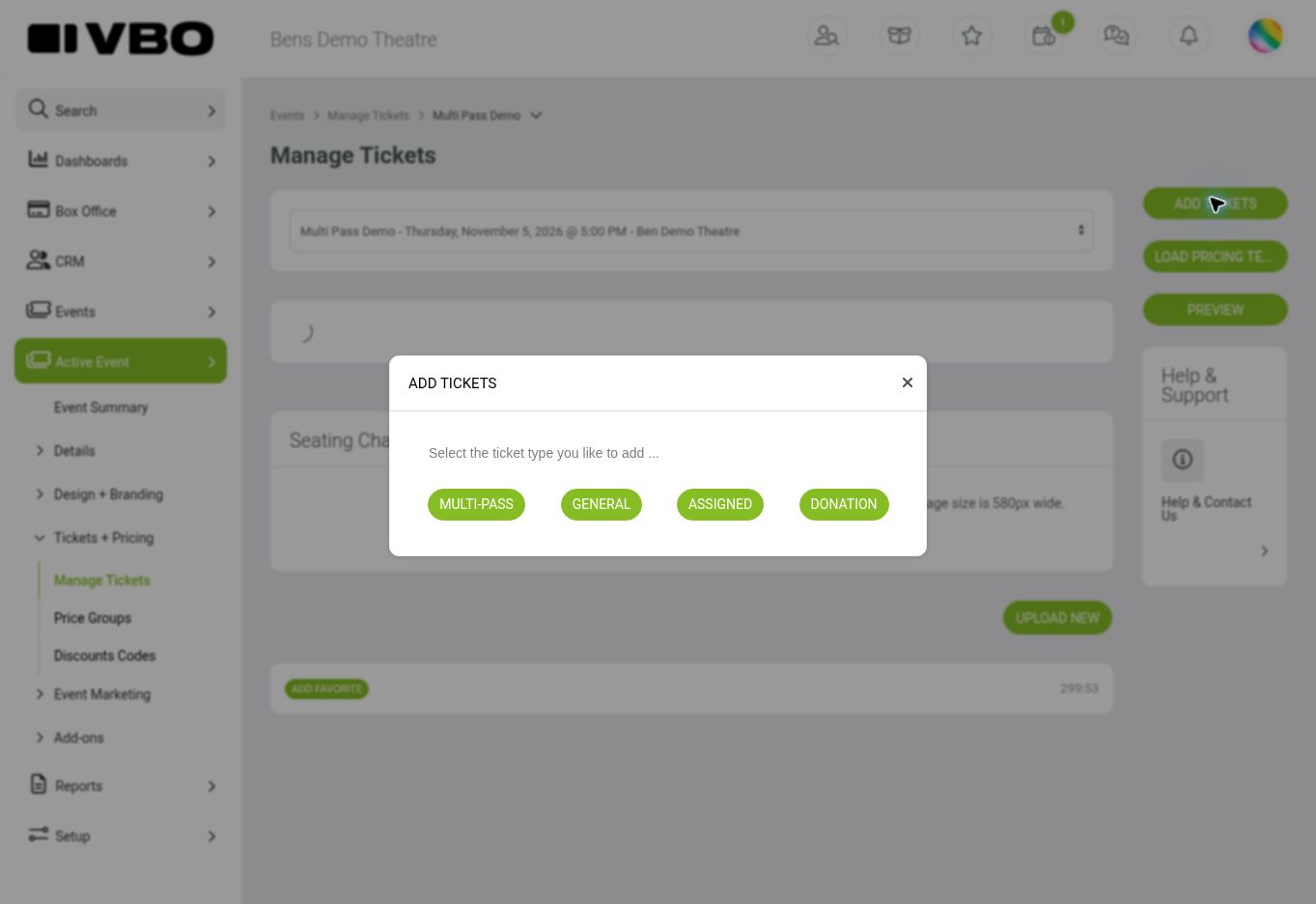
- Click Add Tickets, then choose Multi-Pass.
- The Add Multi-Day Seating form opens. This is the Multi-Pass setup form.
- Enter the settings below, then click Add Tickets to save.
Choose your basic settings
| Setting | What to enter |
|---|---|
| Ticket Name | A clear name, such as Festival Pass or Two-Day Pass. |
| Display Option | Choose Online + Boxoffice to offer the pass in both places, or Boxoffice Only |
| Limit Multi-Pass Usage | No Limit allows use across all eligible dates of the event. Choose a number to limit the pass to that many different event dates. For example, 2 Events means two dates of this event. |
| List Price | The price of one pass. |
| Member Price | The applicable member/subscriber price when used by your organization. Optional. |
| Available Qty | The total number of passes you want to offer. This is separate from each date's regular ticket quantity. |
| Sale Start / Sale End | When the pass can be purchased. These are sales dates. |
| Notes | Explain what is included, how many dates the patron may attend, and that they should keep the same ticket for each visit. |
For a basic pass, leave Subscription Options as Standard Ticket, use no specials, and leave Shared Alloc. as “-” unless you need those features. Shared allocation can only share inventory with other multi-passes (M1,M2,M3).
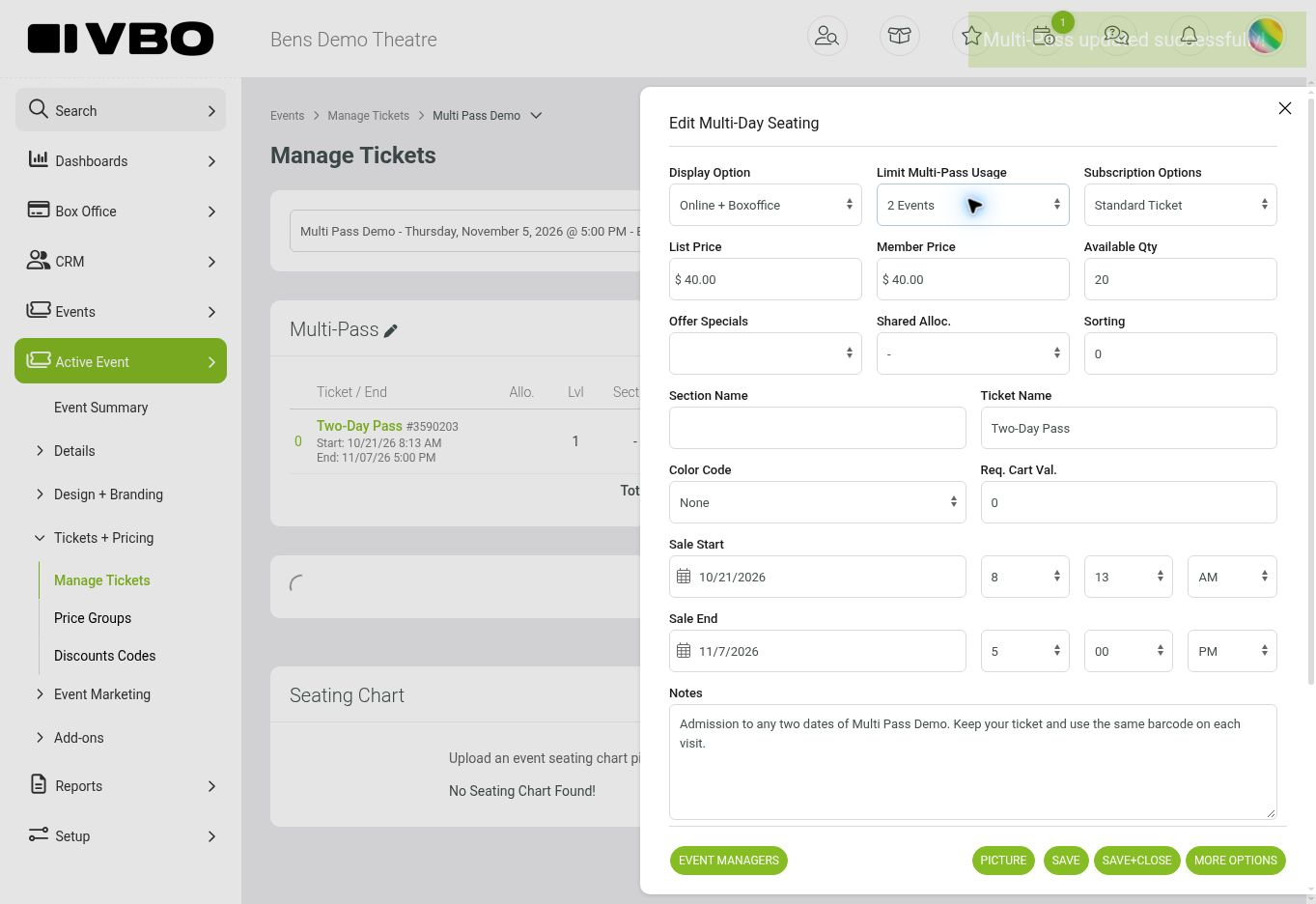
Example settings only. Choose the name, price, quantity, and usage limit that suit your event.
Check the saved pass
Your pass appears in the Multi-Pass section of Manage Tickets. Review its price, Qty, Sold, Avail., and status. The pass is shared across the event's dates, so you do not need to create the same pass separately for each date.
Click the pass name to reopen it and confirm the saved settings, especially Limit Multi-Pass Usage. Make any corrections and click Save+Close. Use Preview to check the buyer-facing display before making the event available for sale.
What the patron receives and how to check them in
Each purchased pass has its own barcode. If a patron purchases two passes, they receive two pass barcodes. They reuse each barcode across the eligible dates; they do not need to exchange it for a new daily ticket.
- Set your scanner to the correct event and the date you are checking in.
- Scan the patron's Multi-Pass barcode.
- On a later eligible date, scan that same barcode again.
A usage limit counts different event dates, not the number of people admitted. For example, a pass limited to 2 Events can be used on two dates. Once that limit is reached, another date is rejected with a maximum event limit message. A repeated check-in on the same date is treated as a duplicate while the ticket is already checked in.
Use scan history to review attendance. The guest list shows who is eligible to attend, while scanning records who actually checked in.
Optional settings
Most events only need the basic setup above. Open the pass and click More Options for additional controls.
- Selected EventDates: Leave blank for all dates of the event. To restrict the pass to specific dates, enter their internal event-date IDs separated by commas. This selects which dates are eligible; Limit Multi-Pass Usage controls how many of those dates the patron may attend. Contact support if you need help identifying the correct IDs; do not enter calendar dates into this field.
- Show Inventory: Display the remaining pass inventory to buyers.
- Qty Min / Max / Steps: Control the quantities buyers can select. These are purchase quantity controls, separate from the pass's attendance limit.
- Sold Out Message: Add a message for when the pass is unavailable due to inventory.
- Shared Alloc.: Share a pool among Multi-Pass ticket types. This does not connect their inventory to regular general-admission tickets.
Changes and common questions
Can I stop selling passes without cancelling existing passes?
Yes. Changing the display option or sales dates controls new sales. It does not cancel tickets already purchased.
Will changing the usage limit affect passes already sold?
Yes. Changes to the usage limit or eligible date restrictions apply when existing passes are scanned. Review these changes carefully after sales begin.
Why is my pass not showing online?
Check that the event is available for sale, Display Option is Online + Boxoffice, the current time is within Sale Start and Sale End, and pass inventory is available.
Why won't a pass scan?
Confirm the scanner's event and date, whether the pass has reached its date limit, and whether that date is allowed. Also check for a previous check-in, a cancelled ticket, an outstanding balance, or a scanner configuration that excludes Multi-Pass Tickets.
Does a no-show free up a regular ticket automatically?
No. Multi-Pass inventory and each date's regular ticket inventory remain separate. Plan daily availability with room for the pass holders who may attend.